
Practical technical support
How do I check whether I have Windows 10 or Windows 11?
Find your Windows edition, version and build on your own computer, with examples of what to look for.
What is the quickest way to check my Windows version?
- Open Start and type winver.
- Choose the winver result. An About Windows window opens.
- Read the product name near the top: it identifies Windows 10 or Windows 11. The version and OS build appear underneath.
You can also press Windows + R, enter winver and press Enter. See Microsoft’s instructions for finding your Windows version.
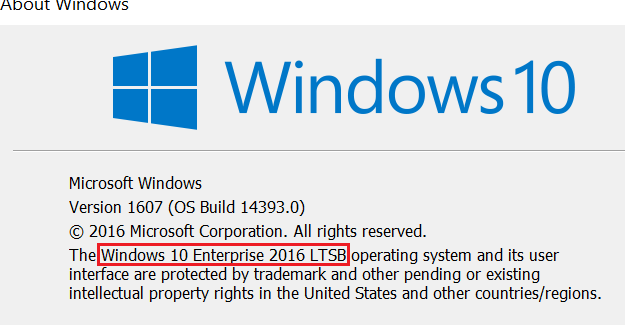
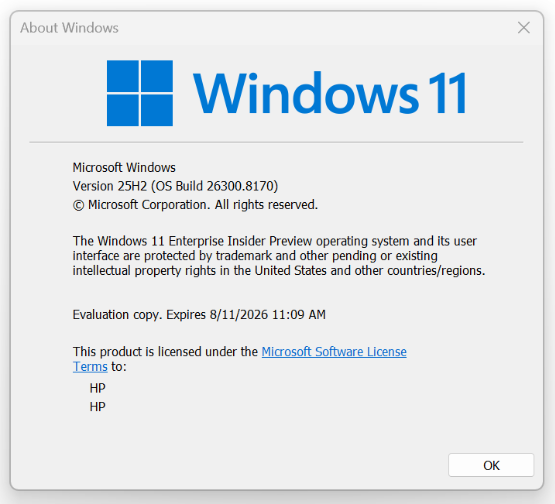
Where is my Windows version in Settings?
Open Start → Settings → System → About. Look for Windows specifications or Windows info, depending on the Settings version. Read the edition, version and OS build. “Windows 11 Home” is an edition; a label such as “25H2” is a release version.
Why can a website say Windows 10 or 11?
These versions can share a traditional browser user-agent description. Some browsers provide additional Client Hints, but others restrict them. Your computer’s About screen is the better way to confirm the exact version. Read why browser detection has limits.
What should I send to someone helping me?
Send the Windows edition, version and build as text, plus a description of the problem. If you share a Settings screenshot, crop out device names, account information and product IDs first. You can also copy a support report.