
Practical technical support
A beginner’s guide to home networking
Understand Wi-Fi, Ethernet, routers, switches, IP addresses, gateways, subnets, VLANs, DMZs and VPNs with a worked home-network example.
Last reviewed:
Start here: Wi-Fi connects a device to a nearby wireless network. Ethernet does that job using a cable. Your internet connection connects your home network to other networks. Improving one part does not automatically improve the others.
The shape of a home network
Imagine a house with a laptop, two phones, a television and a printer. The phones use Wi-Fi. The television uses Ethernet. They can still belong to the same local area network, or LAN. The LAN is the part you manage at home; the internet is the much larger collection of networks beyond it.
The box supplied by your internet provider often combines several jobs: router, Ethernet switch, Wi-Fi access point, firewall and sometimes modem. Those jobs can also live in separate boxes. Learning the functions first makes product names much less confusing.
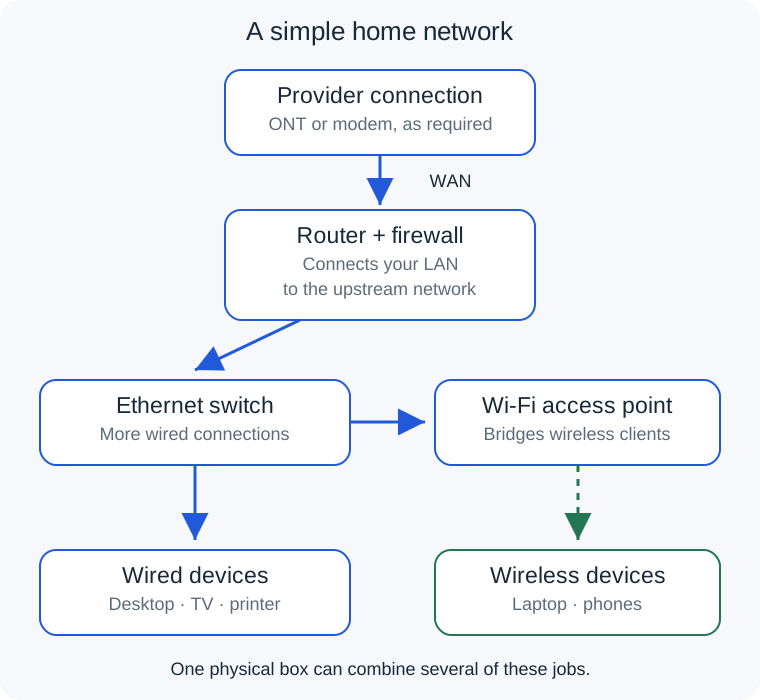
In this simplified example, an optical network terminal, or ONT, connects the provider’s fibre service to the router’s Ethernet WAN (wide area network) port. Another service might use a cable or DSL modem, an integrated modem/router or a mobile-data router. Follow your provider’s requirements: an ONT and a general-purpose router are not interchangeable.
Wi-Fi, Ethernet and broadband are separate links
A laptop can have a fast broadband service available at the router but a poor wireless connection through several walls. Conversely, sitting beside an excellent access point does not let the laptop download from the internet faster than the available broadband path permits.
Wi-Fi shares radio airtime. Walls, interference, distance, client capabilities and access-point placement affect the result. A reported wireless link rate is not the same as usable download throughput. Ethernet normally provides steadier connectivity without wireless interference, but its negotiated speed, cabling and equipment still matter.
A speed test measures a path to a test service. A file copy to a local NAS measures a different path, mainly inside your home. The local transfer can be fast while internet downloads are slow. Use the internet speed test to compare the same computer over Wi-Fi and Ethernet, one run at a time, rather than assuming either result describes the entire network.
Network rates commonly use bits per second, while file sizes often use bytes. Eight bits make one byte, so 100 Mbps is at most 12.5 MB/s before protocol overhead and other limits. The download-time calculator helps compare those units without promising a real transfer time.
What the different boxes do
| Equipment | Main job | What it does not automatically do |
|---|---|---|
| Modem or ONT | Terminates the provider’s access connection. | Replace all the routing and wireless functions you need. |
| Router | Forwards traffic between IP networks. | Provide Wi-Fi unless it also contains an access point. |
| Ethernet switch | Connects wired devices within a network. | Increase your broadband package’s speed. |
| Access point | Connects wireless clients to a network. | Need a separate internet subscription for every room. |
| Firewall | Applies rules at the boundaries it controls. | Make every application behind it safe. |
An ordinary unmanaged switch is useful when you need more Ethernet sockets. A managed switch adds configuration such as VLANs and monitoring. Some switches can also route, but a basic home switch does not replace the router. Power over Ethernet, or PoE, can power compatible access points through the network cable; check the required power and supported PoE standard.
IP addresses, subnets and gateways
An IP address identifies an interface for communication across IP networks. A device can have multiple interfaces and several addresses, including both IPv4 and IPv6. There is not always one single “IP of the computer”.
For a worked IPv4 example, suppose your home subnet is 192.168.50.0/24. The /24 describes the network part of the address. Its mask is 255.255.255.0. In this conventional subnet, 192.168.50.0 is the network address and 192.168.50.255 is the broadcast address. Normal host addresses sit between them.
| Device | Address | Default gateway |
|---|---|---|
| Router’s LAN interface | 192.168.50.1 | The router has its own upstream routes. |
| Laptop | 192.168.50.20/24 | 192.168.50.1 |
| Printer | 192.168.50.40/24 | 192.168.50.1 |
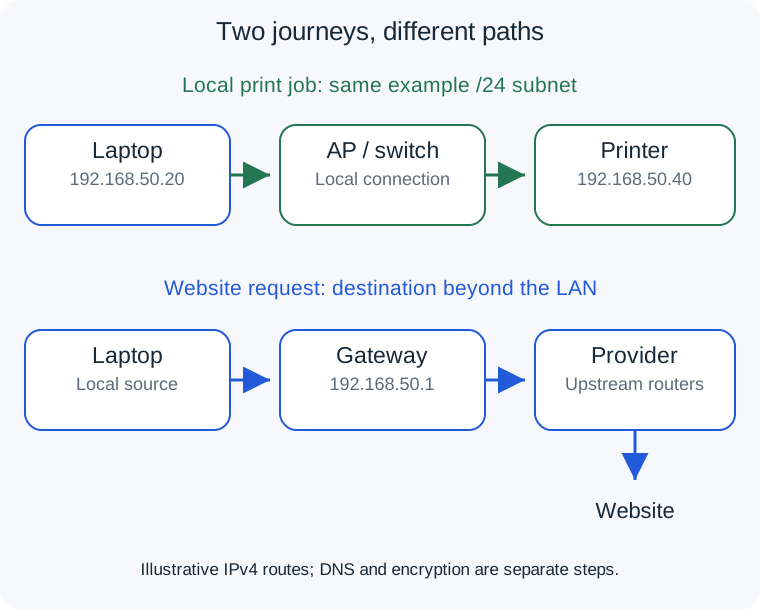
The laptop uses its address and subnet information to decide whether a destination is on the local subnet. For an on-link destination it communicates locally. For destinations without a more specific route, it sends traffic to its default gateway. In many homes that is the router’s LAN address. The gateway is the next hop, not the final website.
Do not turn this into a rule that the first three numbers must always match. That shortcut describes this IPv4 /24, not every subnet size. Equally, manually entering a different-looking address does not create a correctly separated network. These example addresses are for learning, not settings to paste into an existing network.
DHCP supplies settings; DNS answers name questions
Dynamic Host Configuration Protocol (DHCP) commonly supplies an IPv4 lease, subnet information, gateway and DNS settings automatically. A lease is an allocation for a period, not necessarily a permanent identity. A DHCP reservation lets the server repeatedly allocate a chosen address to a known device. This is often easier to manage than manually giving a printer an address that might conflict with the automatic pool.
The Domain Name System (DNS) has a different job: providing records for names such as www.example.com. Your router might forward DNS requests while the resolver is elsewhere. A browser, VPN or managed device may use another resolver. See DNS explained before assuming a resolver change fixes every connection problem.
For an ordinary beginner LAN, keep one intended DHCP service and start with known-working settings. Adding a second DHCP server accidentally can make devices receive inconsistent configurations. A second access point normally extends a network rather than competing to configure it.
Follow a print job and a website request
First the laptop prints to 192.168.50.40. That address is in the same example subnet, so the traffic travels through the access point and switch locally. It does not need your internet provider to route it to the printer. A deliberately cloud-based printing service is a different case.
Next the laptop opens a website. It usually needs a DNS answer and then an encrypted connection to the destination. Internet-bound packets reach the router, which forwards them through its WAN connection. Other routers carry them across the internet, and responses return over the usable return path. Your router is only the first routing step.
On many home IPv4 connections, network address translation, or NAT, lets private devices share a public-facing address. The router tracks those translations and connections. Your provider may add another translation layer, carrier-grade NAT or CGNAT. Under CGNAT, an ordinary home port-forwarding rule may not be sufficient for inbound access.
IPv6 commonly operates without that home IPv4 translation pattern. Devices can have globally routable IPv6 addresses while the firewall still controls unsolicited inbound traffic. A public address does not automatically mean a device is open to everybody. NAT should not be treated as a replacement for a firewall. Our public and private IP guide explains the different views.
Plan useful Ethernet connections
A practical layout is router to switch, then separate cables to fixed devices and access points. A desktop, television, games console or NAS can benefit from a stable wired link while phones remain wireless. Wiring an access point’s backhaul, its upstream connection, also avoids using Wi-Fi airtime for that link.
Check every link, not just the label on one cable. A gigabit port connected through an adapter negotiating at 100 Mbps creates a bottleneck. A 2.5 Gbps computer cannot make a 1 Gbps switch faster. Internet traffic also passes through the router’s WAN interface and routing capabilities.
For permanent runs, plan suitable cable, outlets and patch leads, label both ends and test before hiding the cable. Paul’s Switched On Network Ethernet wiring playlist demonstrates connectors and wall jacks.
Avoid accidentally creating an Ethernet loop by connecting the same switches through several unconfigured paths. Managed networks can use planned redundancy and link aggregation, but extra cables do not automatically create extra capacity.
Understand Wi-Fi placement and mesh
An access point needs a useful radio path to clients. A cupboard behind a television is rarely an ideal starting point. Compare the actual room where calls drop with a position nearer the access point. Change placement or one connection at a time so that the result tells you something.
The wireless network name is the SSID. Two names might represent different bands on one LAN, separate networks or a guest service. Modern systems can also use one name across bands. A higher frequency does not automatically provide better service through several walls; client capabilities and the building matter.
Mesh systems coordinate multiple access points. Their backhaul may be wired or wireless. A satellite still needs a useful upstream path; putting it in the existing dead spot can disappoint. Also avoid adding a second full router behind the first unless the extra routing boundary is intentional.
When weak coverage is the confirmed limitation, compare wired access points and mesh options. The NETGEAR Orbi 970 (affiliate link) is one premium option, but price alone does not establish suitability. Read our Orbi review and upgrade discussion. New wireless equipment cannot fix a provider outage.
Subnets and VLANs: the next level
A subnet is an IP addressing and routing concept. A virtual LAN (VLAN) separates Ethernet broadcast domains on compatible equipment. They are often paired, but they are not interchangeable. A VLAN does not automatically create all the firewall rules you need.
You might plan separate trusted, guest and internet-of-things networks. Guests could reach the internet but not a personal NAS. That needs the router/firewall and the relevant access points or switches to enforce the intended separation. A different SSID or a different-looking IP address is not proof of isolation.
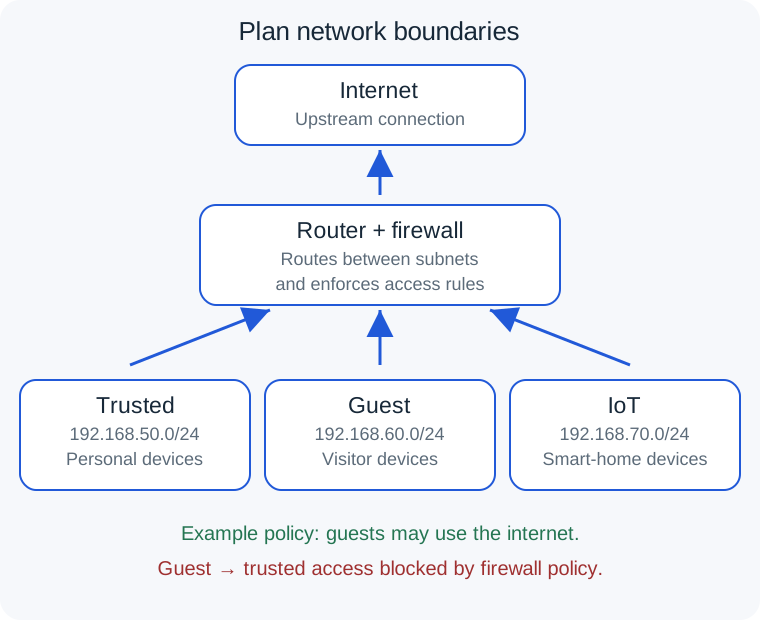
Write down which devices must communicate before separating them. A phone on one subnet might need to discover a printer or speaker on another. Discovery protocols do not necessarily cross subnet boundaries, so enabling that behaviour needs deliberate configuration. Keep a working management route and add one network at a time.
A DMZ is not a magic security setting
In a designed network, a demilitarised zone or DMZ is a separate area for services that need particular outside access. Firewall policies restrict access between that area and internal systems. It is about controlled boundaries, not a guarantee that the service is safe.
A consumer router’s “DMZ host” setting often forwards otherwise unmatched inbound IPv4 traffic to one internal device. This is different from a properly isolated DMZ network and can increase that device’s exposure. It is not a general fix for poor Wi-Fi, a printer problem or a slow video call.
Before publishing a service, understand its authentication, maintenance and firewall requirements. If the aim is simply private access while away, a well-maintained remote-access VPN or another controlled access method may be more appropriate than exposing the service directly.
Where a VPN fits into the route
A remote-access VPN to home can give an authorised laptop access to home resources while away. A commercial privacy VPN sends selected traffic through the provider’s endpoint. They use related technology with different destinations and trust relationships.
Routes decide which traffic enters the tunnel. Split tunnelling sends chosen traffic through it; a full tunnel sends a broader set. DNS configuration matters too. A connected tunnel does not necessarily mean every app uses it or every home subnet is reachable.
Overlapping private subnets can complicate remote access. A laptop visiting another network may think a home address belongs to that local network instead. That is a reason to plan addressing before extending access, rather than repeatedly changing routes without a diagram. Continue with our home VPN setup guide when you are ready for practical choices.
Your first manageable network plan
- Draw the layout. Identify the provider connection, router, switches, access points and any second router.
- Record the working settings. Note the subnet, gateway, DHCP source and configuration backup. Keep passwords out of shared diagrams.
- List the jobs. Stable calls, faster NAS transfers and guest isolation are different requirements.
- Improve the relevant link. Try a placement change or an Ethernet run before replacing everything.
- Compare and record. Use the same device under similar conditions and note what changed.
- Add complexity for a purpose. Multiple subnets and VLANs are useful tools, not requirements for every household.
You have reached a useful intermediate level when you can explain where a device gets its settings, which network it belongs to, how it reaches its gateway and which boundary controls its traffic. You do not need to memorise every protocol. A clear diagram and a repeatable comparison often help more than a collection of unexplained boxes.