
Practical technical support
How to report a problem someone else can reproduce
Create a clear technical report with repeatable steps, expected and actual results, useful comparisons and reviewed device details.
Last reviewed:
Make the next attempt informative
A good report lets another person understand what happened, what you expected and how to attempt the same thing. It does not require you to identify the bug or use specialist vocabulary. “The page is broken” is a starting point; a short repeatable sequence turns it into something support can investigate.
Before repeatedly restarting or clearing data, capture the current symptom and approximate time. Those actions may change or remove the evidence. If an action risks a duplicate payment, message or destructive change, stop repeating it and contact support through the proper channel.
Write the smallest useful sequence
- State where you started, using a public page address without private tokens.
- List the actual steps in order, including the button or field names you saw.
- Describe the expected outcome in ordinary language.
- Record what happened instead, including the exact error if safe to share.
- Say whether it happens every time, occasionally or only under a known condition.
Separate observation from explanation. “The button stays disabled after I enter an address” is an observation. “Your database is down” is a hypothesis unless someone has actually checked it. Leaving the cause open makes it easier for support to investigate several possibilities.
A worked example
Illustrative report, not a known WAIU fault: “On the QR page, I choose Website, paste an HTTPS address and change the pattern. I expect the preview to update. Instead, the preview stays unchanged. It happened three times in this browser; it worked in a second browser.”
That report names a page, a starting state, actions, an expected result, the observed result and a useful comparison. It still needs the actual versions and possibly a non-sensitive example address, but another person can now attempt the same sequence.
If the order matters, include it. Changing a setting before entering content might behave differently from changing it afterwards. If the issue is scrolling or input, compare the mouse wheel, scrollbar, touch or keyboard where appropriate. Different input paths can reveal a condition that a simple page refresh misses.
Change one variable at a time
| Comparison | Question it helps investigate | Limit |
|---|---|---|
| Same browser, fresh page | Does the current page state matter? | A reload may retain cookies and site storage. |
| Another browser | Is the behaviour associated with that browser or profile? | Versions, settings, extensions and sessions all differ. |
| Another device | Does the problem follow the device? | The screen, OS and connection may also change. |
| Another permitted network | Does the network path appear relevant? | It may change DNS, filtering and apparent location together. |
A private window is a useful comparison, not a magic clean-room test. It can have different storage and extension behaviour, and a site may depend on a session you no longer have there. Do not clear all browser data merely to make the report look thorough.
Add the environment without overwhelming the reader
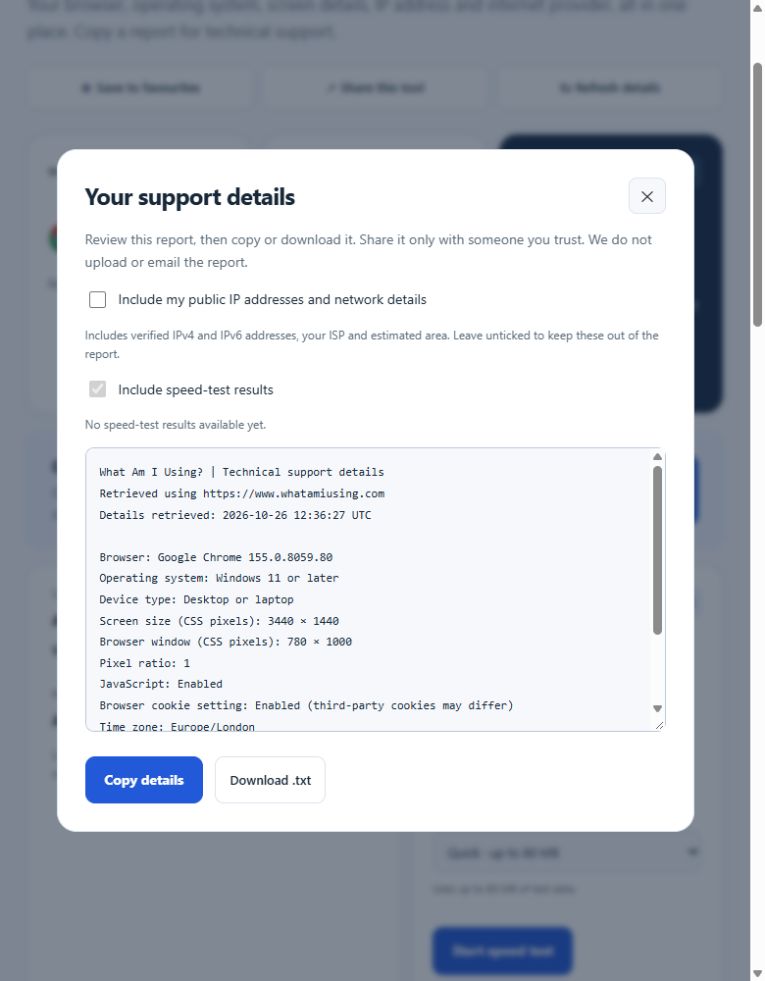
Use Copy support details for browser, operating-system and display information. Review the report and choose whether network details are relevant. A reported OS version may be approximate because browsers restrict some information; include a verified system version separately when needed.
For a layout issue, mention zoom, window size and orientation. For a connection issue, mention Wi-Fi or Ethernet, VPN state and timing. For a camera issue, mention the selected device and the exact permission message. Add the details that distinguish the case, rather than pasting every setting you can find.
Use a report template
Page or feature:
Time and timezone:
Starting state:
Steps to reproduce:
Expected result:
Actual result and exact error:
How often it happens:
Useful comparison and its outcome:
Reviewed browser/device details:
Screenshot attached, with private details removed:
A screenshot should support the sequence, not replace it. Read how to prepare a useful support screenshot. Avoid attaching developer logs or network exports without reviewing them: they can contain sessions, identifiers and personal content.
Close the loop after a suggested fix
Repeat the original steps after one agreed change. Tell support whether the original symptom has gone, changed or remained. “It works now after updating the browser” is useful; “fixed” without the condition loses information.
If you cannot reproduce it anymore, say so rather than inventing certainty. A clear partial report can still reveal a pattern across several users. The support-team toolkit helps teams send consistent instructions so customers know which tool to open and what to return.