
Practical technical support
Why do my video calls keep freezing?
Separate camera and microphone problems from upload contention, Wi-Fi coverage and uneven connection timing before deciding what to change.
Last reviewed:
Describe which part of the call fails
“The call is bad” can mean frozen incoming video, delayed speech, your outgoing audio breaking up or a camera that never starts. Those symptoms point to different comparisons. Note who experiences the problem, whether it affects one meeting or several and the approximate time it begins.
If everyone sees one participant freeze, that participant’s upload path, device or application may deserve attention. If only you lose every other participant, your own receiving path becomes worth checking. Neither observation is conclusive: the meeting service and its routing can also be involved.
Separate device problems from connection problems
Before starting another call, open the webcam and microphone checker. Start only the device you want to test, grant permission if you choose and check the selected input. A clear local picture and microphone response show that the browser can access those devices under that test’s conditions.
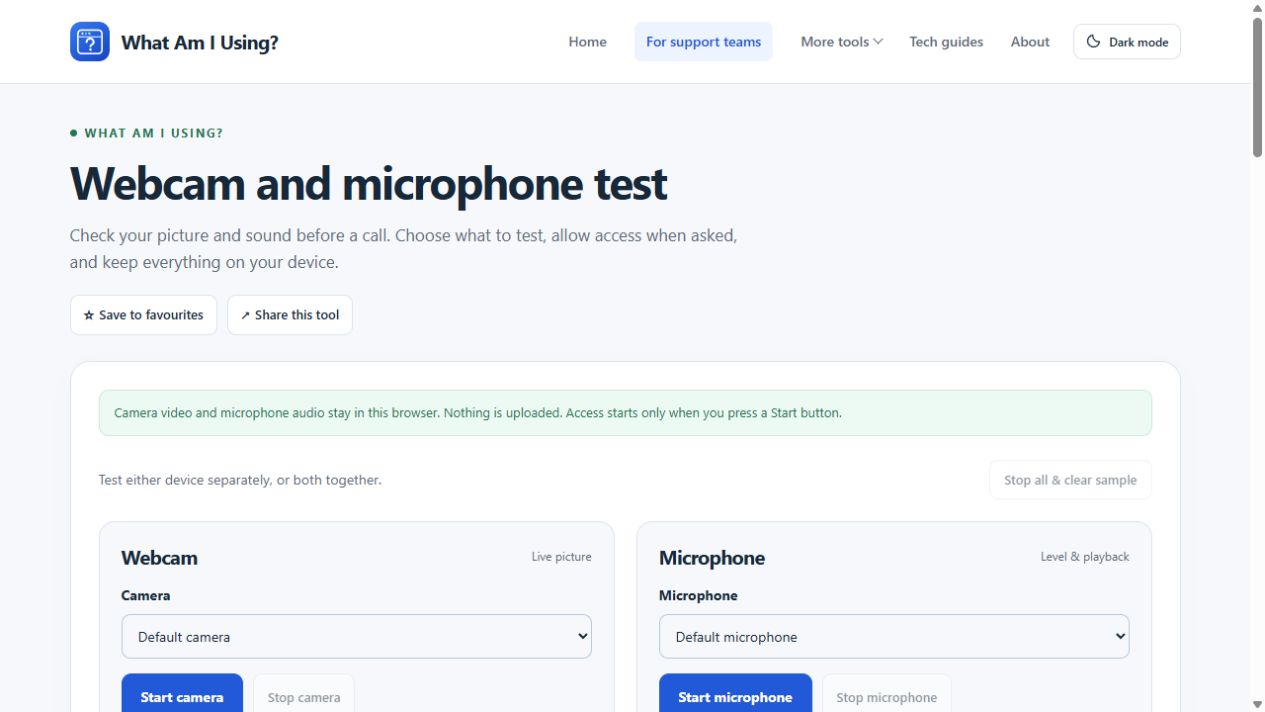
The local checker does not prove that your meeting app has the same permissions or selected device. It also does not test a remote participant’s playback. Stop the checker before returning to the meeting, so it does not compete for the camera.
Check a physical microphone mute switch, camera privacy shutter and the meeting app’s own mute controls. A functioning microphone selected in one app can still be the wrong input in another. Continue with the permissions guide when the local test cannot access a device.
Check capacity without turning the call into a speed test
A call uses both upload and download capacity. A cloud backup or large upload can compete with outgoing audio and video, even on a connection with a high advertised download speed. Other people’s transfers can matter too.
Run the speed test separately from an important call. The test deliberately transfers data and can disrupt the call you are trying to assess. Save the result with its time and connection type; do not treat it as a promise of performance to the meeting service.
There is no single bandwidth number that guarantees every meeting format will work. Resolution, participant layout and the app’s adaptive behaviour vary. Use the meeting provider’s current requirements for that product instead of applying an arbitrary threshold to every call.
Investigate inconsistent timing
If there is sufficient capacity but speech clips or video freezes intermittently, compare timing consistency. The stability monitor can reveal uneven HTTP request times during a separate, labelled run. Leave the tab visible and device awake.
The monitor does not measure the actual audio stream, and missed HTTP checks are not a packet-loss percentage. A steady run also cannot prove that a different route to a call relay is healthy. Read latency, jitter and packet loss to interpret the result.
Try one useful change at a time
- Pause your own unnecessary transfers and compare the next call.
- Move nearer the access point, keeping the same device and app.
- If possible, connect that device over Ethernet and disconnect Wi-Fi.
- Check application and operating-system updates through their normal channels, then restart when appropriate.
- For a managed VPN or work device, involve IT before changing routing or security settings.
Reducing video quality or turning off your camera can be a useful temporary comparison, but keep the outcome precise: it may reduce device processing as well as network demand. Improvement alone does not identify which resource was constrained.
Record a short comparison log
| Condition | Observed symptom | What to investigate |
|---|---|---|
| Office Wi-Fi, backup active | Others hear broken speech. | Upload contention, radio path and app statistics. |
| Same room, backup paused | Speech improves. | Repeat to check whether activity and symptom are related. |
| Ethernet, otherwise similar | Call remains steady. | Wireless path or differing network policy, without assuming a hardware fault. |
Tell support whether the failure affects incoming or outgoing media, what the app’s own diagnostics say and which comparison helped. Share meeting identifiers only through an appropriate private channel. A few well-labelled observations are more actionable than repeatedly buying faster broadband for an unconfirmed cause.