
Practical technical support
Wi-Fi connected, but no internet?
Separate wireless, local-network, DNS, sign-in portal and broadband problems using a practical sequence of comparisons.
Last reviewed:
Find out what “connected” means
A laptop can join a wireless access point without having a working route to the internet. The access point, router, provider connection, DNS resolver and destination website are different parts of that route. A Wi-Fi symbol is a useful clue, not a complete diagnosis.
Write down the time and exact symptom. “Connected to the home network, but two unrelated sites time out” tells support more than “the Wi-Fi is broken”. Note whether it began after moving rooms, waking the device, turning on a VPN or changing equipment.
Compare two devices and two destinations
Try the failing site and an unrelated site on the same device. Then try a second device on the same Wi-Fi, if available. Make sure that a phone is not silently falling back to mobile data. For a controlled comparison you can briefly disable mobile data if appropriate, restoring your normal settings afterwards.
| Observation | Useful next check |
|---|---|
| One site fails on both devices. | Investigate that site, its DNS or restrictions before resetting the network. |
| Several sites fail on one device. | Compare its browser, network settings, VPN and managed-device policies. |
| Every wireless device struggles. | Compare Ethernet and inspect the common access point or upstream connection. |
| Ethernet and Wi-Fi both fail. | Check the common router, provider connection and DNS. |
A second device working does not prove that the first has broken hardware. It may use a different resolver, VPN, cached session or security policy. Keep the observation separate from the conclusion.
Read the local settings before changing them
Confirm that you joined the intended network. A guest SSID may deliberately block printers or a NAS while allowing internet access. Seeing a similar network name is not proof that the same rules apply.
Does the device have an address, gateway and DNS configuration appropriate for that network? An IPv4 address beginning 169.254. can suggest that normal DHCP configuration failed, but IPv6 may still work. Do not diagnose the whole connection from that IPv4 clue alone.
On Windows, ipconfig in an ordinary Command Prompt displays local configuration. On a Mac, open System Settings → Network and view the connection’s details. Interfaces vary between releases. Read before editing, and avoid posting full configuration publicly when a short summary will do.
Separate the wireless link from the internet link
If possible, connect the same computer to a known-working Ethernet port on the same router. Disconnect its Wi-Fi for the run. A cable, wall socket or USB adapter can also be faulty, so confirm that the wired connection is active.
Ethernet working while Wi-Fi fails points towards the wireless path or a different network policy. Similar failure on both directs attention to shared components. Check the provider’s status page through another connection and interpret equipment lights using that model’s instructions.
Do not factory-reset first. That can erase provider and household configuration. If restarting equipment is appropriate, save work, warn others using it and follow the provider’s sequence for separate modems, ONTs and routers.
Check sign-in portals and VPN behaviour
Hotel and guest networks may require a sign-in portal. Use the device’s network sign-in notification when available. Do not bypass a certificate warning or enter sensitive credentials into an unexpected page.
A VPN or security product may intentionally block traffic when its tunnel fails. On your own optional VPN, a controlled comparison with it off can be informative. Ask IT before changing a managed work connection. Recovery with the VPN off identifies a different path or policy, not necessarily a faulty VPN application.
Investigate DNS only when the evidence fits
If names fail while other evidence suggests connectivity exists, follow the DNS guide. A website opened by raw IP is not a reliable substitute: HTTPS and shared hosting commonly depend on the hostname.
Record an existing DNS setting before a permitted test change. Changing the router, browser and device together makes it hard to identify the cause. Success afterwards could also mean a cache expired or the destination recovered.
Check recovery and send a useful report
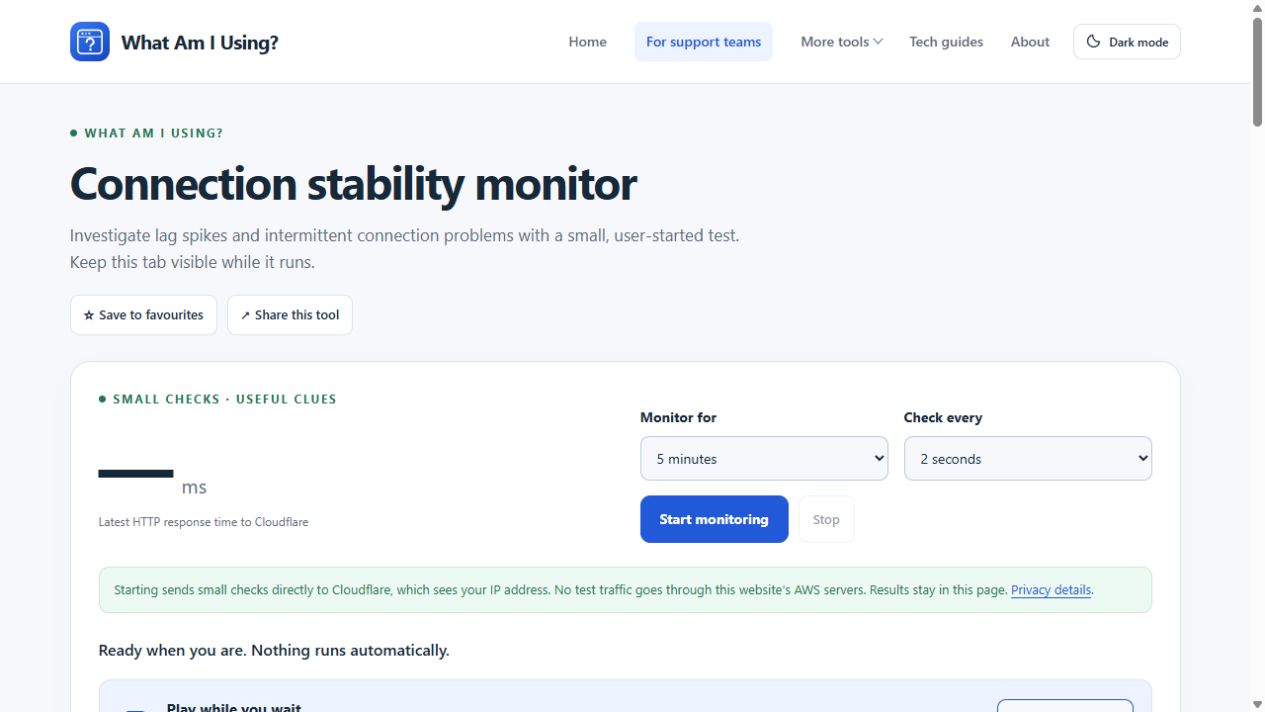
When browsing returns but interruptions recur, try the stability monitor. It observes small HTTP requests, not direct packet loss, and a missed request can involve the browser or test service. Keep the tab visible.
Report the time, devices and destinations compared, whether Ethernet worked and which single change helped. Review the support details before sharing them. This gives the next person a useful investigation rather than a list of unexplained resets.