
Practical technical support
How to speed up a slow Windows PC
Work out what’s slowing Windows down, free up space safely and see whether your changes made a difference.
Last reviewed:
The laptop used to be fine. Now you make a cup of tea while it starts, and opening a folder seems to be asking rather a lot of it. Before you buy anything, find out what the computer is waiting for. Ten minutes in Task Manager can save you an afternoon taking it apart.
Is the whole PC slow, or just one thing?
Try opening a local photo or a folder while the problem is happening. If both open quickly and the browser is still waiting for a page, start with the slow internet guide. If everything drags, press Ctrl + Shift + Esc. In Task Manager, look at Processes and sort by CPU, Memory or Disk. Then open Performance for the graph.
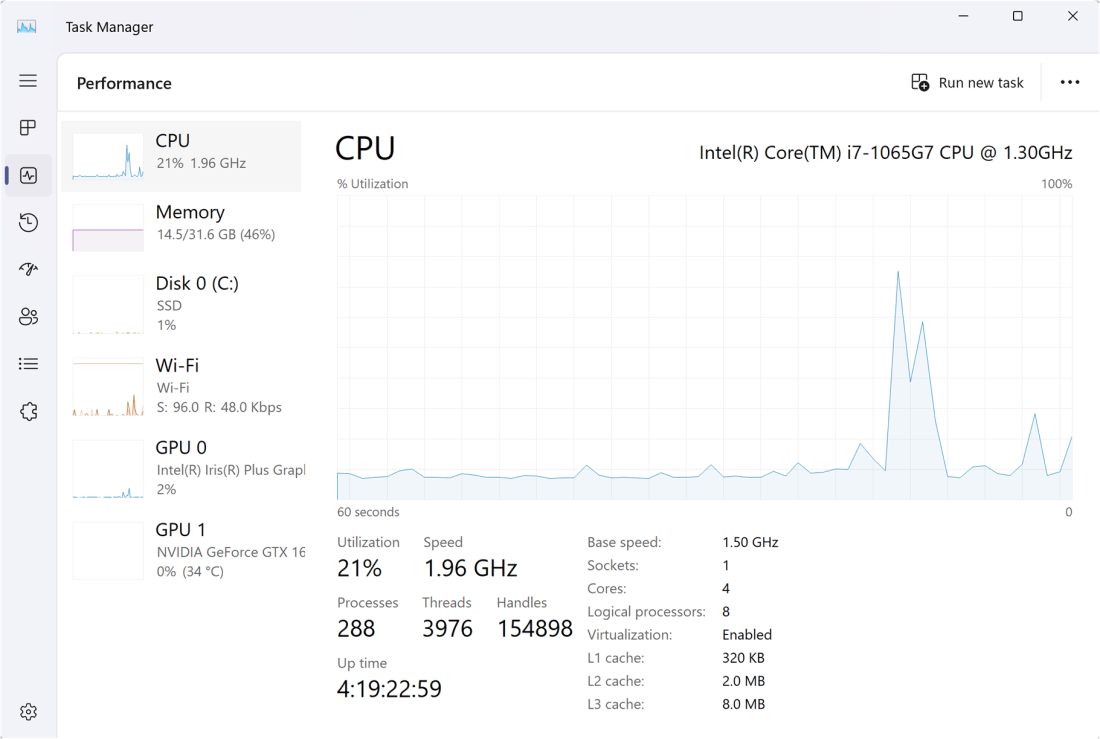
- CPU stays busy. Look at the process at the top. A video export or an update can legitimately use the processor. Let it finish, then try the original task again.
- Memory stays close to full. Close a few of the apps or tabs you normally use together. If switching between apps suddenly feels easier, more RAM might help.
- Disk sits near 100% active time. Open that disk’s Performance panel and check whether it’s a hard disk or an SSD. A mechanical drive can be flat out moving small files even when the transfer rate looks low. Watch what’s using the disk before blaming the drive.
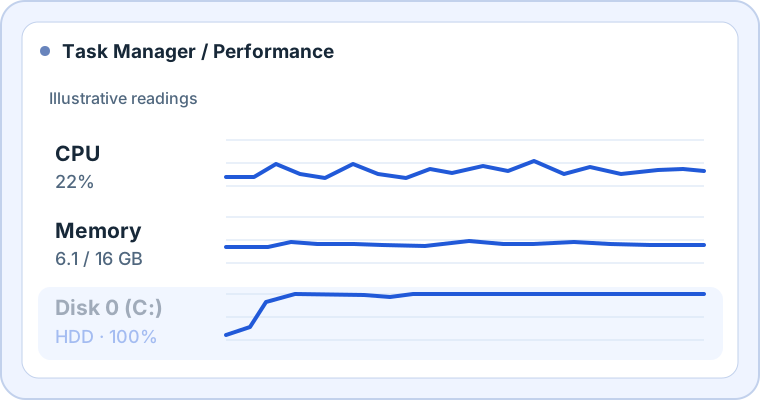
A spike when you open an app is normal. Watch for activity that lasts while the PC feels slow. If an old drive has started clicking, disconnecting or throwing read errors, back up what you can and get help with important data before running more tests or defragmenting it.
Give Windows a bit of room
Go to Settings → System → Storage. See what takes up space before reaching for the delete button. Temporary files and old downloads are different things. Open Downloads yourself and check what’s in there. Look in the Recycle Bin too, especially if you’ve been putting off sorting it.
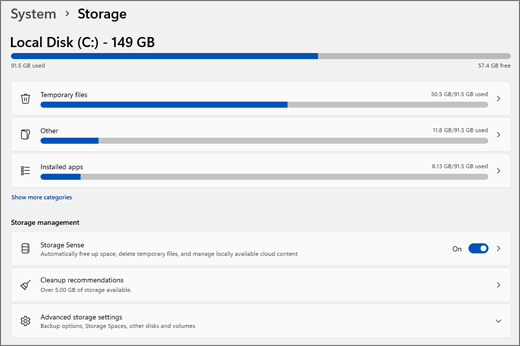
Open Temporary files or search Start for Disk Cleanup. Read each category before selecting it. Previous Windows installations can take up a fair bit of space, but removing them also removes the option to roll back to that previous installation. For ongoing housekeeping, switch on Storage Sense and check what it’s allowed to remove and when. You can leave automatic Downloads cleanup off.
What starts when you sign in?
In Task Manager, open Startup apps. Disable something you recognise and can happily open yourself. A game launcher you use once a month is a better first candidate than antivirus, a touchpad utility or your backup software. Restart and see how long it takes before you can get on with a normal job.
Updates, drivers and the old hard drive
Install pending updates under Settings → Windows Update and restart. Look at optional driver updates if you’re investigating a problem with a particular device. Use Windows Update or the PC or component maker’s support page for the exact model. Skip the download sites that promise to update every driver in one click.
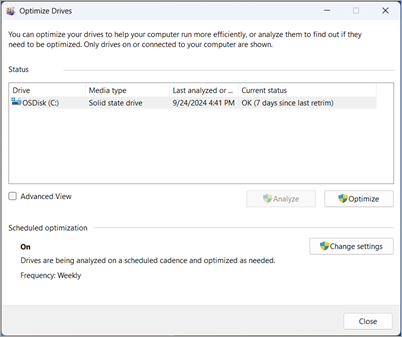
Search for Defragment and Optimise Drives (the app may use the spelling “Optimize”). If the media type says Hard disk drive, use Analyse to see whether defragmentation is worthwhile on a healthy drive. Windows handles SSDs with its own optimisation, including TRIM where supported. Leave scheduled optimisation on and skip third-party defrag tools for SSDs.
If the slowdown came out of nowhere, run a scan in Windows Security and give it time to finish. If a laptop starts well and gets slower as it heats up, try it on a hard surface with the vents clear. Check the power mode and repeat the test plugged in. Those two changes cost nothing.
Repeat the job that used to annoy you
Pick something you actually do. Launch an app, open a project or time how long it takes to get from sign-in to a usable desktop. Time it three times before and after, with the same power mode and apps open. For an app launch, compare first launches with first launches after a restart. Windows can load it faster the second time simply because it remembers what it just read.
If your hard drive still spends most of that time busy, the SSD upgrade guide is the next stop. If the PC feels quick everywhere except games or video exports, look at what a graphics card upgrade would actually change.